How to Block People or Channels on YouTube: The Ultimate 2026 Guide
Tired of annoying recommendations or toxic comments? Learn how to block channels and people on YouTube across desktop, mobile, and YouTube Kids in this step-by-step guide.
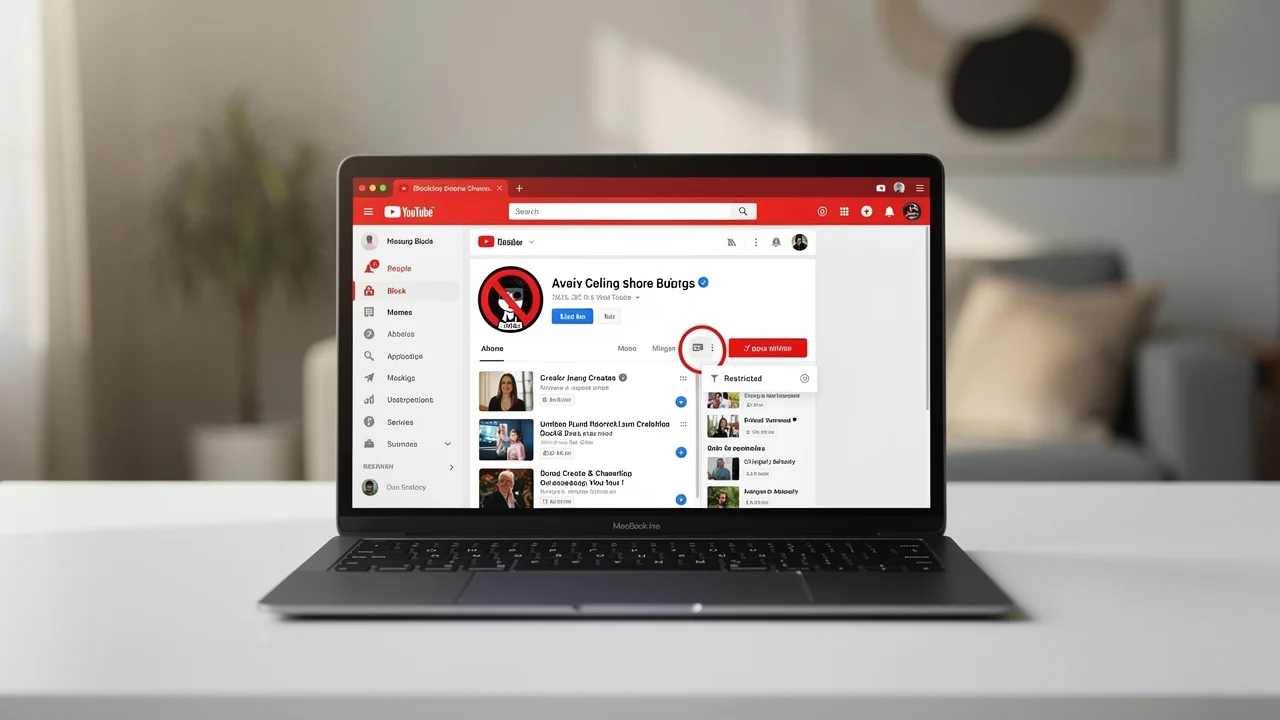
In the digital age, our YouTube feed is a reflection of our interests, but sometimes, that reflection gets clouded by unwanted content, repetitive recommendations, or toxic interactions. Whether you’re a parent trying to curate a safe space for your child, a creator dealing with "trolls," or a viewer tired of seeing the same irrelevant channel, knowing how to block people or channels on YouTube is a vital digital skill.
In this comprehensive 2026 guide, we will break down the exact steps to reclaim your feed and manage your interactions on every device.
Why You Might Want to Block Content on YouTube
Before we dive into the "how," it’s important to understand what "blocking" actually does. On YouTube, the term is nuanced. You might want to:
- Stop seeing a channel in your home feed.
- Prevent a specific user from commenting on your videos.
- Restrict a channel for a child’s supervised account.
- Hide a user’s messages during a live chat.
Each of these requires a slightly different approach. Let’s explore them step-by-step.
1. How to Block a Channel from Your Recommendations
If your "Home" or "Watch Next" feed is cluttered with a channel you simply don't like, you can tell the algorithm to stop showing it to you.
On Desktop (Web Browser)
- Navigate to the YouTube Home page.
- Find a video from the channel you wish to block.
- Hover over the video and click the three vertical dots (⋮) next to the title.
- Select "Don't recommend channel."
- (Optional) If you just don't like that specific video but don't mind the creator, select "Not interested" instead.
On Mobile (Android & iOS)
- Open the YouTube app and stay on the Home tab.
- Locate the video from the unwanted channel.
- Tap the three vertical dots (⋮) below the video thumbnail.
- Tap "Don't recommend channel."
Pro Tip: If you accidentally block a channel, a small pop-up will appear at the bottom of the screen with an "Undo" button. Use it immediately, as it's the fastest way to reverse the action.
2. How to Block a User (Hide from Channel)
If you are a content creator and a specific user is leaving spammy, offensive, or harassing comments, you can "block" them. On YouTube, this is technically called "Hide user from channel."
What happens when you hide a user?
- The user can still watch your videos.
- The user can still leave comments, but only they can see their own comments.
- Your other viewers and you will never see their comments again.
- It effectively silences them without them knowing they’ve been "blocked."
Using YouTube Studio (Desktop)
- Go to YouTube Studio.
- On the left-hand menu, click Comments.
- Find the comment from the person you want to block.
- Click the three dots (⋮) next to their comment.
- Select "Hide user from channel."
Using the YouTube App (Mobile)
- Go to the comment section of one of your videos.
- Tap the user's profile picture to visit their channel.
- On their channel page, tap the three dots (⋮) in the top right corner.
- Select "Hide user from my channel."
3. How to Block Channels for Kids (Parental Controls)
In 2026, YouTube’s parental controls are more robust than ever. If you are using a Supervised Experience for your pre-teen or the YouTube Kids app, you have direct control.
Blocking for Supervised Accounts
- Sign in to YouTube using your linked parent account.
- Navigate to the channel page of the creator you want to block.
- Go to the "About" tab (on Desktop) or tap the three dots (on Mobile).
- Select "Block channel for kids."
- Choose the child’s profile you want this to apply to and hit Done.
In the YouTube Kids App
- Tap the Lock icon in the bottom corner of any video page.
- Complete the math problem or enter your custom passcode.
- Select Block.
- Choose "Block this entire channel" or "Block this video only."
4. How to Block Someone in Live Chat
Live streams can move fast, and sometimes a viewer can become disruptive.
- As a Creator/Moderator: Tap the user's message in the chat feed and select "Hide user from channel." This removes all their previous messages and prevents future ones.
- As a Viewer: If you just don't want to see a specific person's messages while watching a stream, tap their message and select "Block." This only affects your view of the chat.
5. Managing Your Block List (How to Unblock)
If you’ve had a change of heart or blocked someone by mistake, you can manage your "Hidden Users" list in your settings.
- Open YouTube Studio.
- Click Settings (gear icon) at the bottom left.
- Select the Community tab.
- Under Automated Filters, scroll down to Hidden Users.
- Click the "X" next to any name to unblock them.
- Click Save.
Summary Table: Blocking vs. Hiding vs. Not Recommending
| Action | What it does | Best for... |
|---|---|---|
| Don't Recommend | Stops a channel's videos from appearing in your feed. | Cleaning up your Home page. |
| Hide User | Prevents a user's comments from being seen by anyone else. | Dealing with trolls or spam. |
| Block for Kids | Removes a channel entirely from a child's account. | Parental safety and control. |
| Block (Live Chat) | Hides a specific person's messages from your view. | Improving your viewing experience. |
Conclusion
Managing your YouTube experience is about taking control of the algorithm and your social interactions. While YouTube doesn't have a single "global block" button that makes a channel vanish from the entire internet for you, the combination of "Don't recommend channel" and "Hide user from channel" provides a powerful toolkit for a cleaner, safer experience.
By following the steps above, you can ensure that your time on YouTube is spent watching the content you love, free from distractions and negativity.
Ready to create better thumbnails?
Start generating click-worthy thumbnails with AI today.
Get Started Free