How to Delete YouTube Comments: The Ultimate 2026 Guide
Want to clean up your YouTube history or moderate your channel? Learn how to delete individual comments, bulk remove history, and use AI moderation tools in 2026.
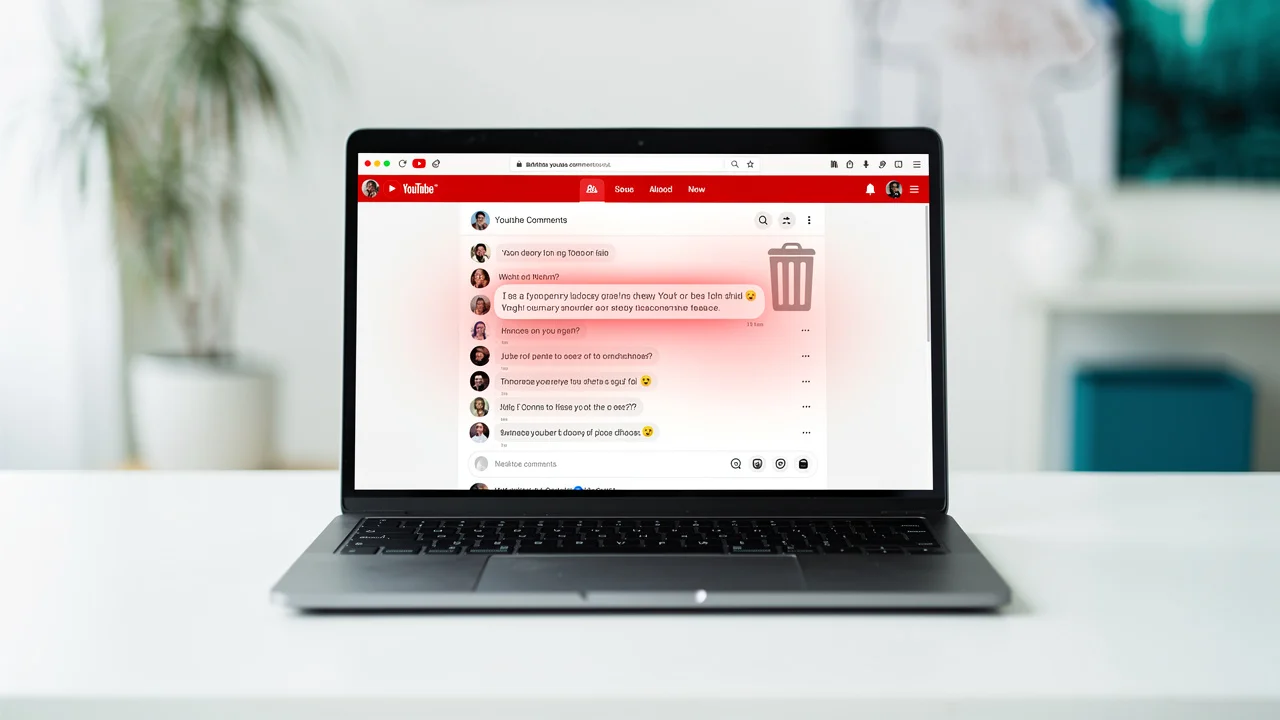
Managing your digital footprint is an essential skill in 2026. Whether you've grown out of an old opinion, spotted a typo in a high-traffic thread, or need to clean up the comment section on your own channel to maintain a healthy community, knowing how to efficiently remove YouTube comments is vital.
This guide provides a comprehensive, step-by-step walkthrough for deleting comments on YouTube across all devices, managing your entire comment history, and using advanced moderation tools to keep your channel spam-free.
1. How to Delete Your Own Comments
Sometimes we post in the heat of the moment or simply change our minds. Fortunately, YouTube makes it relatively easy to find and remove your own contributions.
On Desktop (Browser)
- Navigate to the Video: Find the video where you left the comment.
- Locate Your Comment: Scroll through the comment section. Your comments are often highlighted or easier to find if you sort by "Newest first."
- The Three-Dot Menu: Hover over your comment to reveal the three vertical dots (More) on the right side.
- Delete: Click the dots and select Delete.
- Confirm: A pop-up will ask for confirmation. Click Delete again.
On Mobile (Android & iOS)
The process is nearly identical on the YouTube app:
- Open the YouTube app and find the specific video.
- Tap the Comments section to expand it.
- Find your comment and tap the three vertical dots next to it.
- Select Delete and confirm.
Pro Tip: If you can't remember which video you commented on, don't waste time scrolling. Use the Comment History tool detailed in the next section.
2. Managing Your Entire Comment History
If you want to perform a "digital spring cleaning" and remove multiple comments from years ago, the Google My Activity dashboard is your best friend.
Accessing History on Desktop
- Go to YouTube.com.
- In the left-hand sidebar, click History.
- On the right side of the page, under "Manage all history," click Comments.
- This opens the "YouTube comments" section of your Google Activity. You will see a chronological list of every comment you’ve ever made.
- Click the X icon next to any comment to delete it instantly.
Accessing History on Mobile
- Tap your Profile Icon (labeled "You") at the bottom right.
- Tap the Settings (gear) icon at the top right.
- Select Manage all history.
- Tap the Interactions tab at the top.
- Select Comments & replies.
- Tap the X next to any comment to remove it.
3. How to Delete Comments on Your Own Videos
As a creator, you have the authority to remove any comment left on your videos. This is essential for removing spam, hate speech, or "trolls."
Removing Individual Comments
When you are logged into your creator account, every comment on your video will have a menu.
- Remove: Deletes the comment from the video.
- Report: Sends the comment to YouTube for a policy violation review.
- Hide user from channel: A "shadowban" of sorts—the user can still comment, but no one (including you) will ever see their comments again.
Using YouTube Studio for Bulk Moderation
If you have a high-volume channel, deleting comments one-by-one is inefficient. Use the YouTube Studio desktop site or app:
- Open YouTube Studio.
- Select the Comments tab from the left menu.
- Use the Filters at the top to find specific types of comments (e.g., "Contains questions," "Search for keywords," or "Subscriber status").
- Check the boxes next to multiple comments and select the Remove (trash can) icon at the top of the list.
| Action | What Happens? | Best Used For |
|---|---|---|
| Remove | Comment is gone for everyone. | General cleanup, typos, or off-topic posts. |
| Report | YouTube reviews for community guideline violations. | Harassment, hate speech, or illegal content. |
| Hide User | User is muted globally on your channel. | Persistent trolls or bots. |
4. Advanced: Can You Delete All Comments at Once?
Technically, YouTube does not provide a "Delete All" button. However, in 2026, there are two workarounds for those who want a completely clean slate.
Method A: The "Nuclear" Option (Hide Channel)
Hiding your channel is a temporary state that permanently deletes all your comments across the entire platform.
- Go to YouTube Studio > Settings > Channel > Advanced Settings.
- Select Remove YouTube Content (you may need to sign in again).
- Choose "I want to hide my channel."
- Check all the boxes and confirm.
- Wait a few minutes, then re-enable your channel. Your videos and playlists will return, but your comments are gone forever.
Method B: Browser Extensions
There are third-party Chrome extensions like "YouTube Comment Deleter" that automate the clicking process on your My Activity page.
- Warning: Only use highly-rated extensions and remove them immediately after use to protect your account data.
5. Automated Moderation Tools for Creators
The best way to manage comments is to prevent the bad ones from appearing in the first place. YouTube’s AI-driven moderation tools have become incredibly sophisticated.
Setting Up Filters
- Go to YouTube Studio > Settings > Community.
- Automated Filters: * Blocked Words: Enter words or phrases you want to be automatically held for review. If a user uses these words, their comment won't go live until you approve it.
- Block Links: Check this box to automatically hold any comment containing a URL or hashtag. This is the #1 way to stop spam bots.
- Default Settings: Under the "Defaults" tab, you can choose "Hold potentially inappropriate comments for review." In 2026, you can choose between Basic and Strict levels of AI filtering.
6. Troubleshooting: Why Can't I Delete a Comment?
If you’re having trouble removing a comment, it’s usually due to one of the following:
- "Made for Kids" Content: If a video is marked as "Made for Kids," comments are disabled entirely. Existing comments may be hidden and unmanageable until the setting is changed.
- System Latency: Sometimes a deleted comment still appears for a few minutes due to browser caching. Refresh the page or clear your cache.
- Account Permissions: If you are a "Manager" or "Editor" of a channel but not the "Owner," your permissions to delete certain types of content might be restricted.
- Comment Already Removed: If someone else reported the comment and YouTube's automated system removed it simultaneously, you might get an error message when trying to delete it yourself.
Summary and Best Practices
Maintaining a clean YouTube presence is about more than just aesthetics; it's about brand safety and mental well-being.
- Review regularly: Spend 5 minutes a week in your YouTube Studio "Held for Review" tab.
- Don't feed the trolls: Use the "Hide user from channel" feature rather than arguing.
- Be intentional: Your comment history is public and can be searched by employers or peers. Use the Google My Activity tool to prune your past.
Ready to create better thumbnails?
Start generating click-worthy thumbnails with AI today.
Get Started Free