How to View Your Subscribers on YouTube
Wondering who is following your journey? Learn how to see your YouTube subscriber list on desktop and mobile, and discover why some fans remain hidden.
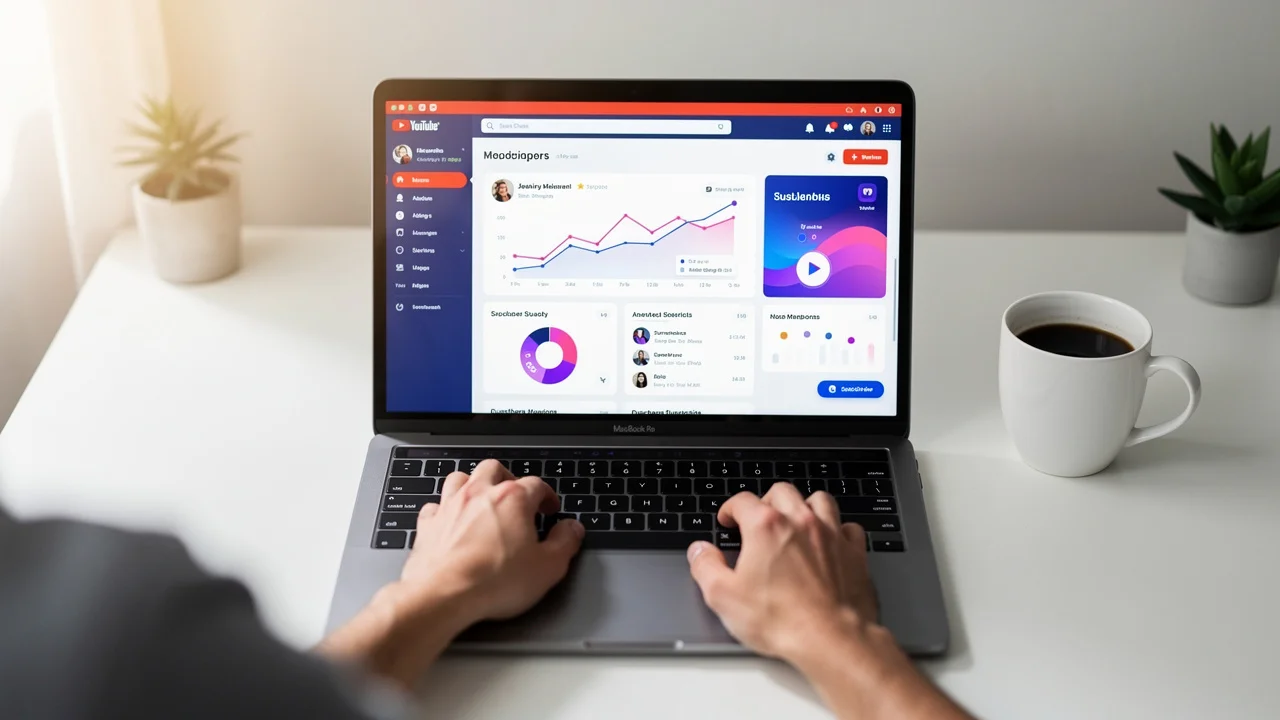
Understanding who is watching your content is the cornerstone of building a thriving community. In 2026, with over 2.85 billion users on the platform, your subscriber list is no longer just a "vanity metric"—it is a map of your most loyal supporters, potential collaborators, and brand advocates.
Whether you are looking to give a shoutout to a new fan or analyzing which type of content is driving the most growth, knowing how to navigate your subscriber data is essential. This guide covers every method to view your subscribers on YouTube across all devices.
Why Monitoring Your Subscriber List Matters
Before we jump into the "how," let’s discuss the "why." Viewing your subscribers provides three critical advantages:
- Community Engagement: Seeing the names of your recent subscribers allows you to interact with them via the Community Tab or shoutouts, fostering a sense of belonging.
- Networking Opportunities: Often, other creators will subscribe to your channel. Identifying them early can lead to collaboration opportunities.
- Content Strategy: By seeing when and who subscribes, you can correlate growth with specific video uploads or Shorts.
How to View Your Subscribers on Desktop (The Full List)
The desktop version of YouTube Studio remains the only way to see a detailed, scrollable list of individual subscriber names.
Step 1: Sign In to YouTube Studio
Go to studio.youtube.com and log in to the account associated with your channel.
Step 2: Locate the "Recent Subscribers" Card
On your Channel Dashboard (the default landing page), scroll down to the bottom right. You will see a card titled Recent subscribers.
Step 3: Expand the List
Click on "See all" at the bottom of that card. A pop-up window will appear displaying your most recent public subscribers.
Step 4: Filter and Sort
In the pop-up window, you can customize the view:
- Timeframe: Change the range from "Last 90 days" (default) to Lifetime, Last 365 days, or as recent as Last 7 days.
- Sort by: You can sort the list by the Date Subscribed or by the Subscriber Count of the users themselves.
Note: Sorting by "Subscriber Count" is a great way to find "Influencer fans"—other YouTubers who have subscribed to you and might have their own significant audiences.
Viewing Subscribers on Mobile (iOS & Android)
In 2026, YouTube’s mobile infrastructure is split between the main app and the YouTube Studio app. Neither app allows you to see the names of every individual subscriber in a list format (due to screen real estate and privacy constraints), but they offer the best way to track your numbers on the go.
Using the Main YouTube App
- Open the app and tap your Profile Picture in the bottom right corner.
- Tap on "Your channel."
- Directly under your channel name and handle, you will see your Total Subscriber Count.
Using the YouTube Studio App
This is the preferred method for creators.
- Open the YouTube Studio App.
- The Dashboard immediately shows your total subscriber count and how many you’ve gained in the last 28 days.
- Tap the Analytics tab at the bottom.
- Swipe the top cards until you reach Subscribers. Tap it to see a detailed graph of your growth over time.
The "Invisible" Subscribers: Understanding Privacy Settings
A common question creators ask is: "Why does my dashboard say I have 1,000 subscribers, but the 'Recent Subscribers' list only shows 200 names?"
This discrepancy is due to YouTube Privacy Settings. By default, YouTube subscriptions are often set to Private.
Who Appears in Your List?
A subscriber will only appear in your "Recent Subscribers" list if:
- Their subscription settings are set to Public.
- They subscribed within the last 28 days (for the default view).
- Their account is active (not suspended or flagged as spam).
Who is Hidden?
A subscriber is hidden from your list if:
- They have chosen to keep their subscriptions Private in their Google Account settings.
- Their account is brand new and hasn't been verified by the algorithm yet.
- YouTube has identified them as a potential spam bot (these accounts are eventually purged).
Deep Dive: Subscriber Analytics in 2026
If you want to grow, you need to look beyond the names and into the Audience Data. In YouTube Studio (Desktop), click on Analytics and then the Audience tab.
1. New vs. Returning Viewers
This metric tells you if your subscribers are actually coming back to watch your new videos. If your "Returning Viewers" line is flat while your "New Viewers" line is spiking, your content is reaching people, but you aren't "hooking" them into a long-term relationship.
2. Subscriber Bell Notifications
Ever wonder how many people actually have the "Bell" turned on?
- Navigate to Analytics > Audience.
- Scroll down to the Subscriber bell notifications card.
- This shows the percentage of your audience that receives "All" notifications for your channel. The platform average is usually between 10% and 30%.
3. "Other Channels Your Audience Watches"
This is one of the most powerful tools in 2026. It doesn't tell you who your subscribers are by name, but it tells you their interests. Use this list to find trending topics in your niche.
Troubleshooting Subscriber Count Issues
"The Great Purge" (Decreasing Subscriber Counts)
Occasionally, you might see your subscriber count drop by 10, 50, or even 100 in a single day. This is almost always a YouTube Spam Purge. YouTube regularly removes "closed accounts" and "spam accounts" to ensure that your metrics are accurate. While it hurts to see the number go down, it actually helps your Click-Through Rate (CTR), as it removes "dead" accounts that wouldn't have watched your videos anyway.
Real-Time Subscriber Count
If you are approaching a milestone (like 10k or 100k), use the Live Subscriber Count:
- Go to YouTube Studio > Analytics.
- On the right-hand "Realtime" card, click "See Live Count."
- This provides a full-screen, ticking animation of your subscriber growth as it happens.
Strategy: How to Turn "Viewers" into "Subscribers"
Seeing your subscribers is the first step; keeping them is the second. In 2026, the "Subscribe" button is no longer enough. You must give viewers a reason to join the community.
| Feature | Best Practice for 2026 |
|---|---|
| Community Posts | Mention recent subscribers or run polls asking what they want to see next. |
| Pinned Comments | Heart the comments of your subscribers to show you are paying attention. |
| Shorts Funnels | Use the "Related Video" feature in Shorts to drive people to your long-form content. |
| Member-Only Perks | If you have enough subs, offer "Loyalty Badges" to distinguish long-term fans. |
Conclusion
Viewing your subscribers is more than just checking a number—it’s about understanding the humans behind the screen. Use the desktop list to find creators to network with, and use the mobile analytics to track which of your content "hooks" the audience best.
As the YouTube landscape continues to evolve in 2026, the creators who focus on community quality over subscriber quantity will be the ones who thrive.
Would you like me to help you draft a Community Tab post to welcome your new subscribers and boost engagement?
Ready to create better thumbnails?
Start generating click-worthy thumbnails with AI today.
Get Started Free